GaugeMon
Mac Performance Guide
Mac System Data taking hundreds of GB: find what it is from the terminal
Short answer
System Data is not a folder. Apple's Mac User Guide describes it as the category that "contains files that don't fall into the categories listed here": "log files, caches, VM files, and other runtime system resources", plus "temporary files, fonts, app support files, and plug-ins", and says "you can't manage the contents of this category" from Storage settings. On a developer's Mac most of it is caches, containers and developer tools under ~/Library, and four commands measure it without sudo: df and diskutil for what is really used, tmutil for snapshots, du for the folders.
Step 1: how much is really used, and why df disagrees with Finder
df -h / /System/Volumes/DataFilesystem Size Used Avail Capacity Mounted on
/dev/disk3s1s1 926Gi 15Gi 113Gi 12% /
/dev/disk3s5 926Gi 772Gi 113Gi 88% /System/Volumes/DataSince Catalina the startup disk is two volumes in one APFS container: the sealed system at / (15 GiB here) and everything you can change on the Data volume. They share the container's free space, which is why both rows show the same 113 GiB available. Finder and Storage settings report 121.43 GB free on this same Mac: that is the identical number in decimal gigabytes rather than the binary gibibytes df -h prints. diskutil apfs list shows the container in decimal and lists every volume, including the ones Finder hides:
diskutil apfs list | grep -E 'Container Reference|Capacity In Use|Not Allocated|Name:|Capacity Consumed'APFS Container Reference: disk3
Capacity In Use By Volumes: 873145188352 B (873.1 GB) (87.8% used)
Capacity Not Allocated: 121517395968 B (121.5 GB) (12.2% free)
Name: Macintosh HD (Case-insensitive)
Capacity Consumed: 16238198784 B (16.2 GB)
Name: Preboot (Case-insensitive)
Capacity Consumed: 17996320768 B (18.0 GB)
Name: Recovery (Case-insensitive)
Capacity Consumed: 2600882176 B (2.6 GB)
Name: Data (Case-insensitive)
Capacity Consumed: 828846563328 B (828.8 GB)
Name: VM (Case-insensitive)
Capacity Consumed: 6442655744 B (6.4 GB)Preboot, Recovery and VM are part of System Data and are not yours to shrink. The 828.8 GB on Data is where the rest lives. If the container free space is much smaller than what Finder shows, the difference is purgeable space, which is step 2.
Step 2: snapshots
APFS snapshots hold on to blocks you have already deleted, and Storage settings files them under System Data. List them:
tmutil listlocalsnapshots /Snapshots for volume group containing disk /:
com.apple.os.update-6C061CB125E7...
com.apple.os.update-AAD61DF03944...
com.apple.os.update-MSUPrepareUpdateNames that start com.apple.os.update are the signed system volume and an update macOS has staged; diskutil apfs listSnapshots / marks them Purgeable: No and you cannot remove them. Names that start com.apple.TimeMachine. followed by a date are Time Machine's local snapshots. Apple's About Time Machine local snapshots says Time Machine "saves one snapshot of your startup disk approximately every hour, and keeps it for 24 hours", that "your Mac counts the space used by snapshots as available storage", and that it "automatically deletes snapshots as they age or as space is needed for other things". So a large purgeable number is not a problem until a copy or install actually fails. If you want the space back now, Apple's supported way is Time Machine settings: set Backup Frequency to Manually, wait a few minutes, then set it back. tmutil deletelocalsnapshots works too, but it throws away restore points.
Step 3: swap and the sleep image
Apple's "VM files" are the swap files and the hibernation image on the VM volume:
ls -la /System/Volumes/VM /private/var/vm/System/Volumes/VM:
-rw------- 1 root wheel 1073741824 Aug 10 20:55 swapfile0
-rw------- 1 root wheel 1073741824 Sep 17 21:51 swapfile1
...
-rw------- 1 root wheel 1073741824 Sep 18 13:33 swapfile5
/private/var/vm:
-rw------T 1 root wheel 2147483648 Aug 9 22:25 sleepimageSix 1 GB swap files and a 2 GB sleep image; the files are allocated as they fill, so du -h /System/Volumes/VM reports 6.0 GB rather than 8. macOS creates and removes swap files itself; if there are many, the fix is memory, not disk. See High swap usage on Mac: when it matters.
Step 4: measure the folders Storage settings will not show you
The rest of System Data is ordinary files, almost all under ~/Library, /Library and /private/var. du -xsh sums each folder without crossing into other volumes; sort -h puts the biggest last. Start one level down in ~/Library:
du -xsh ~/Library/* 2>/dev/null | sort -h | tail -61.7G /Users/suresk/Library/pnpm
4.9G /Users/suresk/Library/Android
32G /Users/suresk/Library/Caches
40G /Users/suresk/Library/Application Support
70G /Users/suresk/Library/Containers
130G /Users/suresk/Library/DeveloperThat is 272 GB of "System Data" on one Mac, with the owners named. Go a level deeper into whichever is big; here the usual suspects were:
du -xsh ~/Library/Developer/Xcode/DerivedData ~/Library/Developer/CoreSimulator \
  ~/Library/Developer/Xcode/iOS\ DeviceSupport ~/Library/Containers/com.docker.docker \
  ~/.cache ~/.npm ~/.m2 /private/var/folders /Library/Developer 2>/dev/null | sort -h
2.6G /Users/suresk/.npm
3.1G /Users/suresk/.m2
4.0G /private/var/folders
5.2G /Users/suresk/.cache
8.6G /Library/Developer
18G /Users/suresk/Library/Developer/Xcode/iOS DeviceSupport
40G /Users/suresk/Library/Developer/CoreSimulator
68G /Users/suresk/Library/Containers/com.docker.docker
71G /Users/suresk/Library/Developer/Xcode/DerivedDataThree things to know about du:
- Permissions. Terminal cannot read Mail, Messages, Safari and a few other folders unless it has Full Disk Access in System Settings > Privacy & Security, which is what the
2>/dev/nullhides. Those folders have their own categories in Storage settings anyway. - Sparse files. Docker's
Docker.rawdisk image is sparse.dureports the 68 GB actually allocated;ls -lshows the much larger apparent size.docker system dfsays how much of it is reclaimable (78 GB of unused volumes here). - Mounted disk images. Xcode's simulator runtimes mount as their own APFS containers, so they appear as separate
disk5,disk7entries indiskutil apfs listbut are files insideCoreSimulatoron your Data volume.
Step 5: what is safe to clear
Delete through the tool that owns the data, not with rm in /private/var. Xcode's DerivedData can go at any time (Xcode > Settings > Locations); unused simulators via xcrun simctl delete unavailable or Xcode > Settings > Components; iOS DeviceSupport folders for devices you no longer plug in; Docker via docker system prune (read its warning first); brew cleanup and npm cache clean --force. Apps rebuild ~/Library/Caches, but quit them first. Leave Preboot, Recovery, VM, /private/var/db and the com.apple.os.update snapshots alone; macOS manages those.
The easier way: GaugeMon
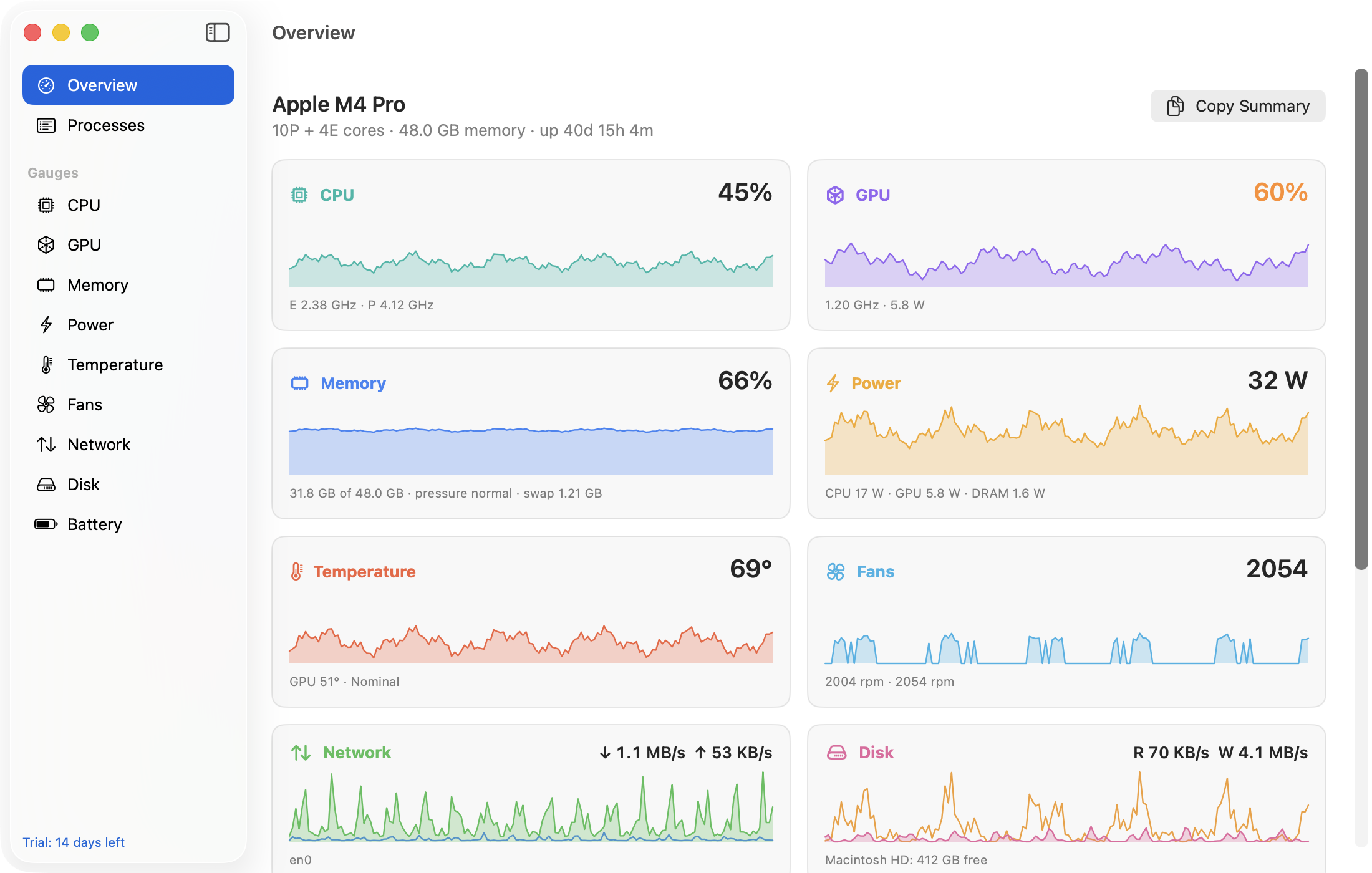
GaugeMon's Disk gauge lists every local volume with its free space counted the way Finder counts it, purgeable space included, so the number matches Storage settings instead of df. It does not categorise storage or tell you what System Data is; that is the du work above. What it adds is time: a chart of disk reads and writes over the last ten minutes and the top processes by disk I/O under it, with Disk Read and Disk Write columns you can add to the Processes window. When free space is shrinking while you work, that is how you catch the build, the container or the sync client doing it, before ~/Library/Caches is 32 GB.